02 - Quick Start

Quick Start
This guide takes you from installing Flunnel to a published landing page in about five minutes of hands-on work, plus generation time. We will keep to a single straight path and pick safe defaults for you along the way. When you want the full set of options behind each choice, the Step-by-Step Guide covers everything in depth.
Throughout this guide we will build one real page together. Our example brand is RestWell, a sleep brand, and we will build a campaign landing page for their weighted blanket.
Before you start (one-time setup)
Flunnel is a Shopify app. You install it once, connect a couple of services once, and then every page you build afterward skips straight to step 1. These three setup tasks live in Settings and only need to be done a single time.
1. Install Flunnel from the Shopify App Store
Find Flunnel in the Shopify App Store and install it the same way you would install any other Shopify app. Once installed, Flunnel runs inside your Shopify admin, and the pages you publish are created directly in your store's online shop.
2. Connect your AI provider
Flunnel uses your own AI provider to write your pages, so you bring your own key. Open Settings, then the API key tab.
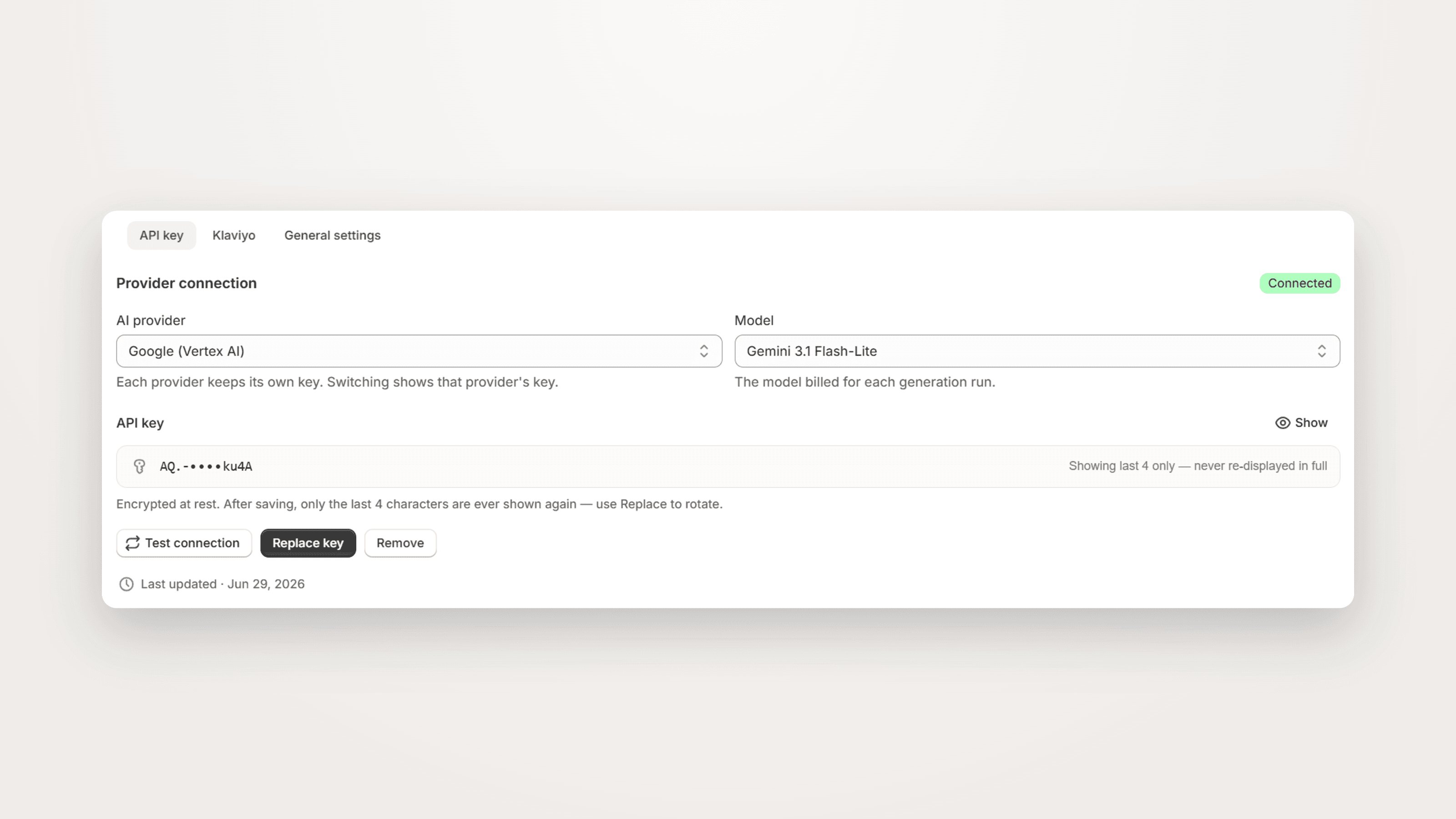
Choose your AI provider (for example, Google Vertex AI), choose the Model that will be billed for each generation run (for example, Gemini 3.1 Flash-Lite), and paste your API key. Each provider keeps its own key, so switching providers shows that provider's key. Your key is encrypted at rest, and after saving only the last four characters are ever shown again. Click Test connection to confirm it works. When the status reads Connected, you are ready.
3. Connect Klaviyo
This step lets your published page capture email opt-ins and lets you push the matching email flow to Klaviyo. Open Settings, then the Klaviyo tab.
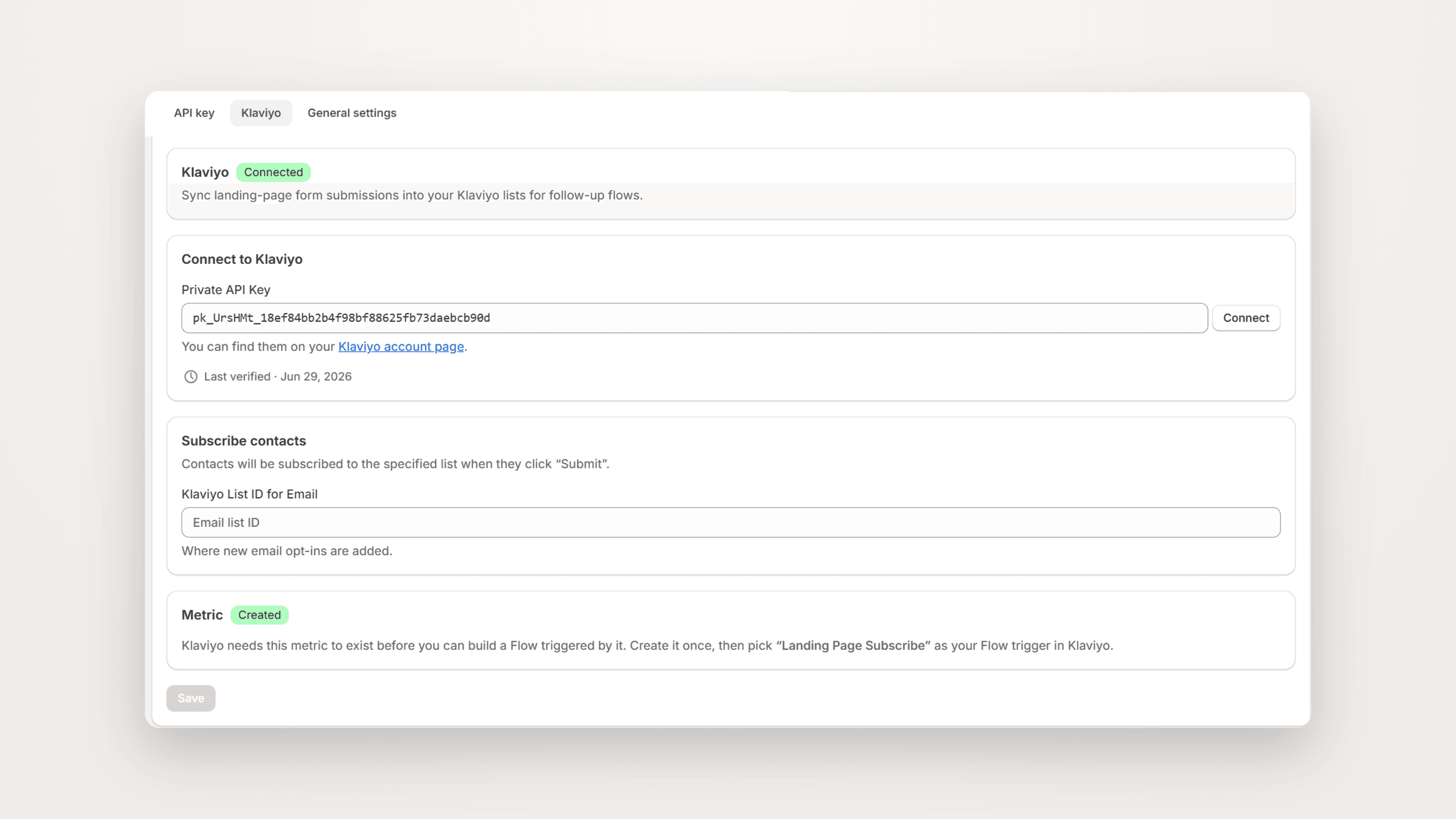
There are three things to set here:
Private API Key. Paste your Klaviyo private key (it starts with
pk_). You can find it on your Klaviyo account page. Click Connect and wait for the status to read Connected.Klaviyo List ID for Email. Enter the list where new email opt-ins should be added. Contacts are subscribed to this list when they click Submit on your page.
Metric. Klaviyo needs a metric to exist before you can build a Flow triggered by it. Create it once here, then choose Landing Page Subscribe as your Flow trigger inside Klaviyo.
Click Save. With these three setup tasks done, you never have to repeat them. From here on, building a page starts at step 1.
What you will build
By the end of this guide you will have two matched assets for Aerix Sport, both produced in a single run:
A live landing page for the Matchpoint Elite racket, published inside the Aerix Sport online store, written for one specific buyer.
A three-email follow-up flow (Welcome, Value, Offer) ready to push to Klaviyo.
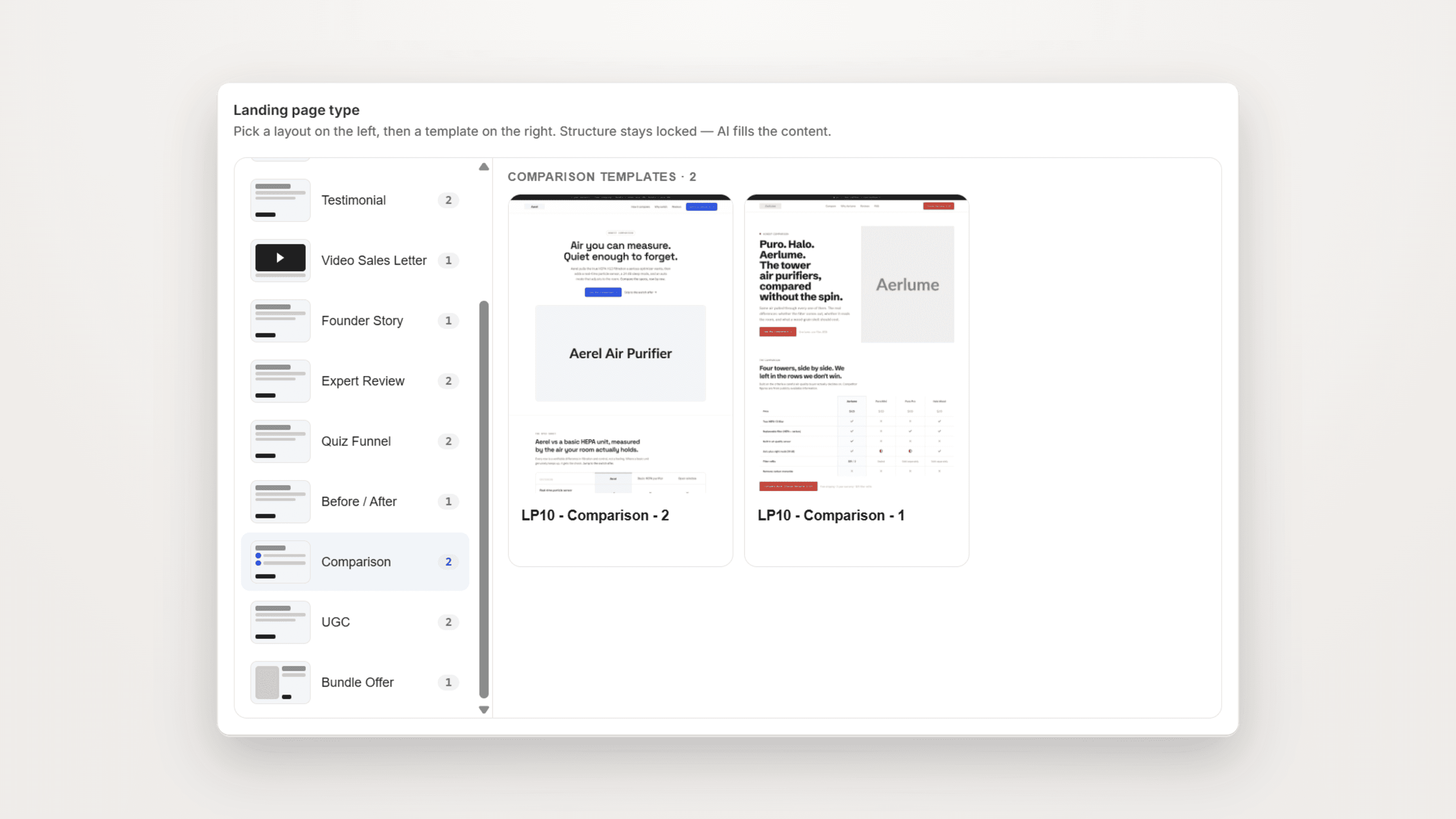
Step 1, Pick a template
Choose your landing-page type first, then a template within it.
For this guide we will use the Advertorial / Native Article type. It is a reliable default for cold paid traffic because it reads like an article rather than an ad, which keeps a skeptical first-time visitor reading. Flunnel ships with twelve types in total, and you can explore all of them in The 12 Landing Page Types when you are ready to match a type to a specific campaign.
Inside the Advertorial type, pick any ready-made template. Each one is a finished structure, so you are choosing a layout, not starting from a blank page.
Step 2, Fill the essential brief
This is where you steer the writing. Flunnel has many brief fields, but for your first page you only need a handful. The rest are optional and are covered in the Step-by-Step Guide. Fill in these five, and you will get a strong page.
Page title and URL handle. This drives the page headline and the page address. The handle you approve here is exactly where the page will be created in your store. Example: title "The Racket Built for Players Who Lose Control at Full Swing", handle matchpoint-elite.
Persona and core pain. Say who you are writing to and the single frustration the page must name in the first thirty seconds. Example: "Competitive club players in their thirties who play two to three times a week and feel their racket get unstable on hard, fast hits."
Anchor phrase. This is the phrase your ad and your page share, so the message matches and the click feels continuous. Example: "Control that holds up at full swing."
Offer and mandatory CTA. Enter the full commercial offer and the exact button text the page must use. Example offer: "110 dollars, free shipping, 30-day on-court return." Example CTA: "Claim my Matchpoint Elite."
Raw features and facts. Paste the hard facts the AI should write from. Stick to true, verifiable details. Example: "300g unstrung, 16x19 string pattern, graphite frame, 100 square inch head."
Everything else on this screen is optional. The more specific you are, the sharper the page, but these five are enough to generate.

Step 3, Generate
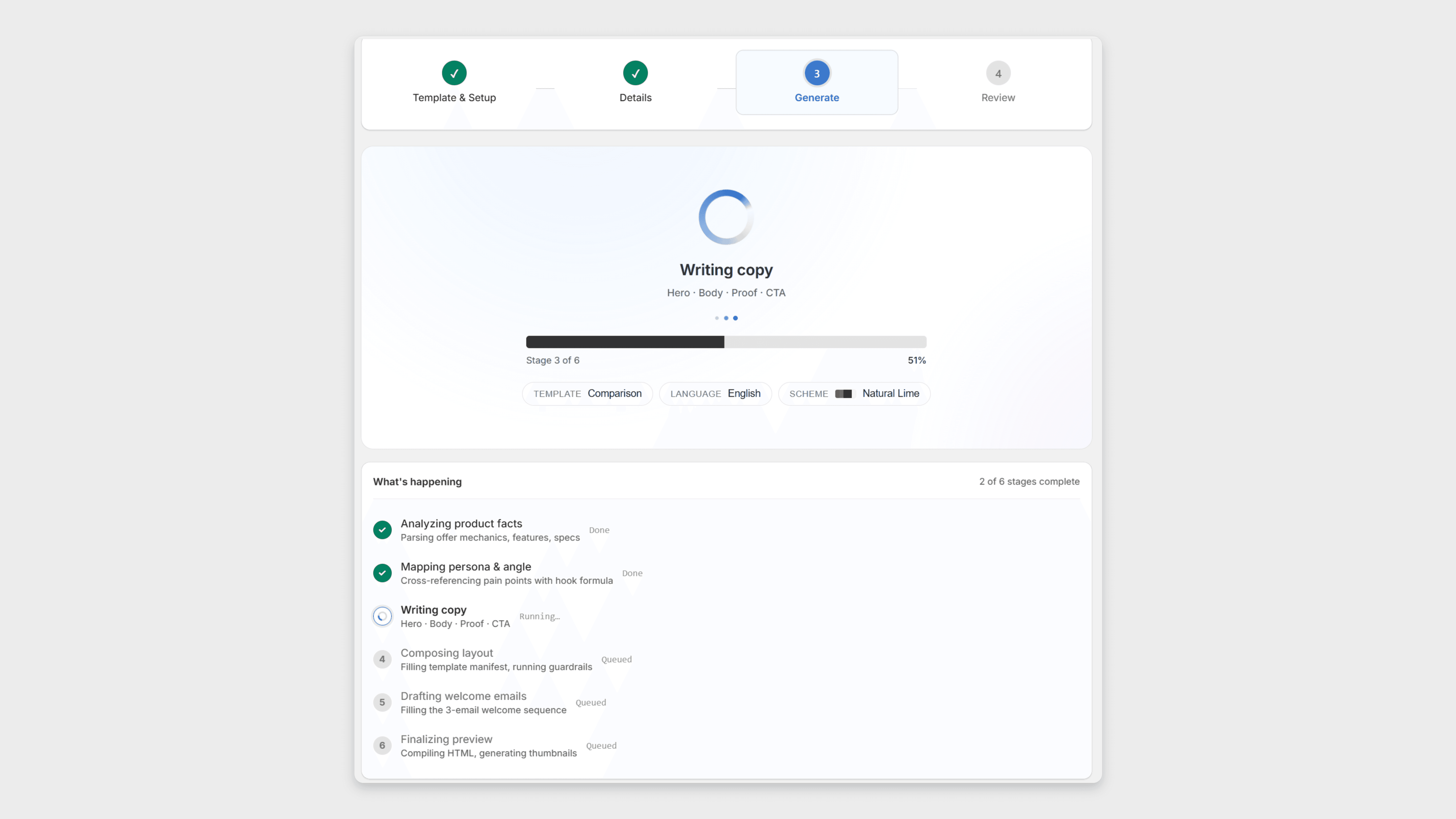
Click Generate. Flunnel writes the page first, mapping your persona and angle, cross-referencing the pain point, composing the layout, and filling the template with your brand tokens. Then it plans and writes the matching three-email flow.
Generation time depends on the AI model you selected and how detailed your instructions are. It usually takes more than thirty seconds, so give it a moment to finish.
Step 4, Review and publish
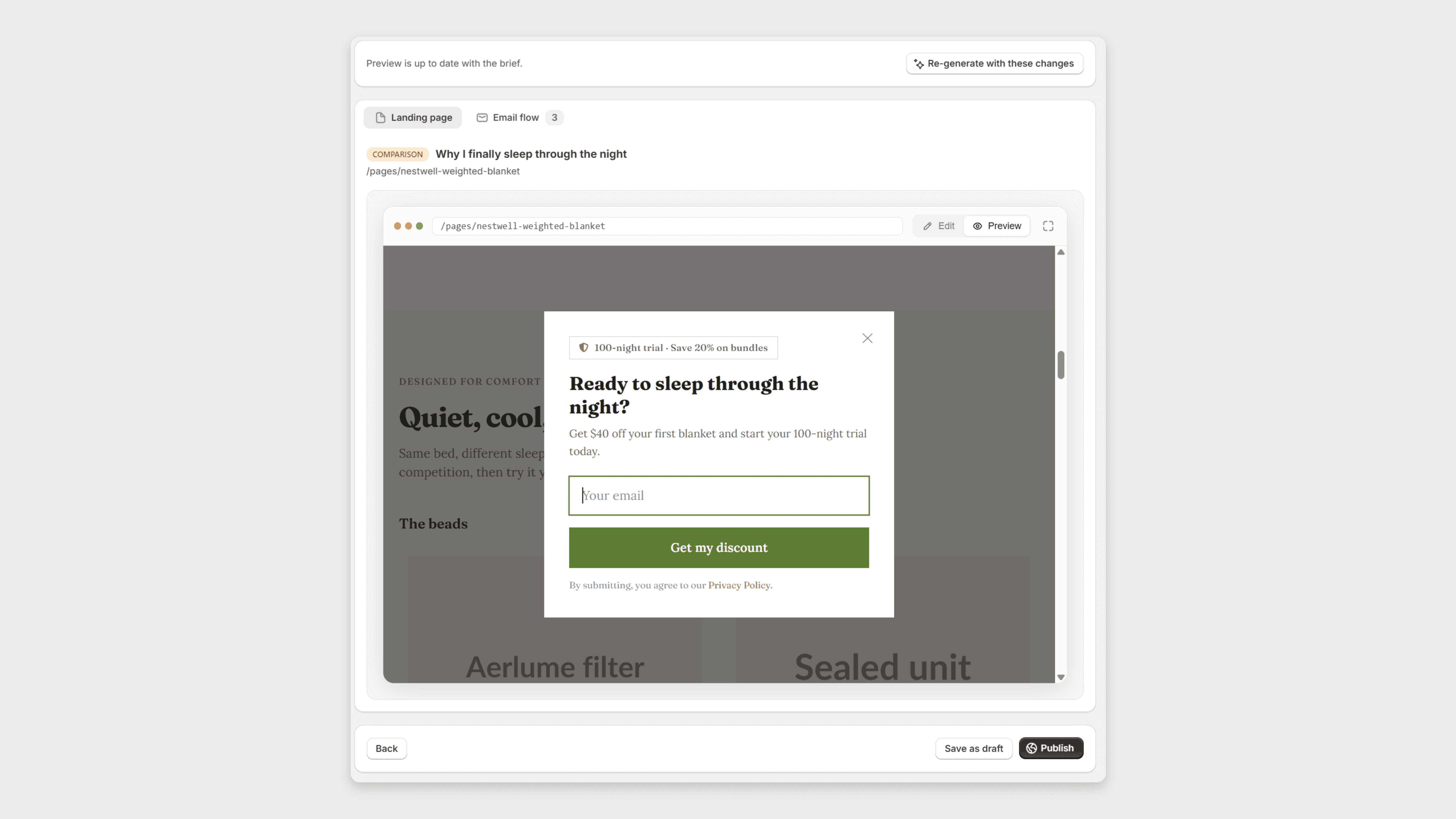
Preview the finished page in both desktop and mobile to check how it reads on each. If a section needs a quick fix, you can edit the text inline or re-generate that one section without touching the rest. For the full editing toolkit, see Editing Your Page.
When you are happy with it, click Publish. Publishing creates the page inside your Shopify online store at the handle you approved in step 2, so it goes live on your own store domain and is ready for ads immediately. If you would rather keep working on it, save it as a draft instead.
Finally, push the email flow to Klaviyo so the Welcome, Value, and Offer emails are ready to send.
You are live
You now have a published Aerix Sport landing page on your store domain and a matching three-email flow in Klaviyo, all from one run. Point an ad at the page and you are testing.
Where to go next:
Core Concepts explains the ideas behind the choices you just made: awareness stages, anchor phrases, and copy frameworks. Reading it is what turns a decent page into a page that converts.
The 12 Landing Page Types helps you match a type to your next campaign.
The Step-by-Step Guide walks through every brief field and every option you skipped here.
Back to Introduction · Continue to Core Concepts
Share: